Overview
Astronomy Observation Planner helps Mac users prepare a focused observing session: accept internet and privacy terms, set an observing location, choose telescope equipment and accessories, filter visible targets, plan observation windows, and export or review the session plan.
The macOS app is a desktop build. The workflow is designed around one desktop workspace rather than the mobile tab shell used by the iOS app.
First Launch Privacy And Internet Page
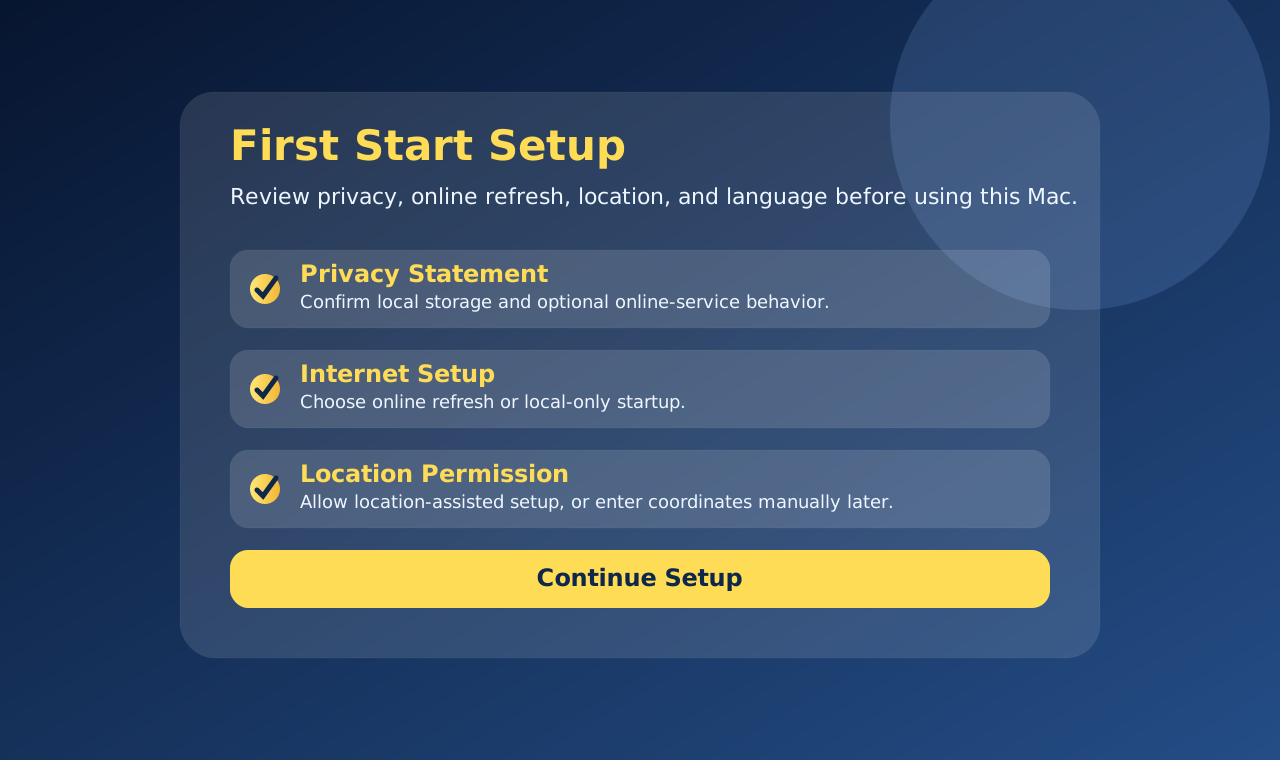
On a clean start, the app opens with a privacy, internet access, and location-use agreement page. Location is used only for alignment and observing-site planning. Online access is used for calculations and external resources such as catalog updates, location lookup, elevation lookup, weather, target imagery, and sky conditions.
- The privacy, internet access, and location-use checkboxes must be accepted before setup continues.
- After the agreements, a thank-you splash explains the 30-day free trial. The trial clock starts when Continue is selected on that splash.
- A five-days-left reminder includes StoreKit Purchase and Restore actions plus a support email link for feedback and feature requests.
- Accepting the page is retained, so it should not appear on every launch.
- The acceptance state can be reset during testing to verify the first-start flow.
- macOS Location Services permission is separate from the location-use agreement.
- If online access is declined or unavailable, bundled/local planning data can still be used for basic planning.
Quick Start
- Open Astronomy Observation Planner.
- Accept the privacy and internet access page if this is a first launch.
- Open Setup Locations and create or select the default observing site.
- Open the Telescope or Equipment page and choose the telescope visible for the session.
- Select one or more compatible accessories from the accessory drop-down.
- Use Set as Default when the chosen telescope and accessories should be reused.
- Choose Next Step to open the Target Database Filter page, or choose Plan an Observation to go directly to planning.
- Filter the target catalog, add any blocked sky areas, apply the filter, and double-click targets to inspect examples.
- Assign observation times and review or export the plan.
Home Workspace
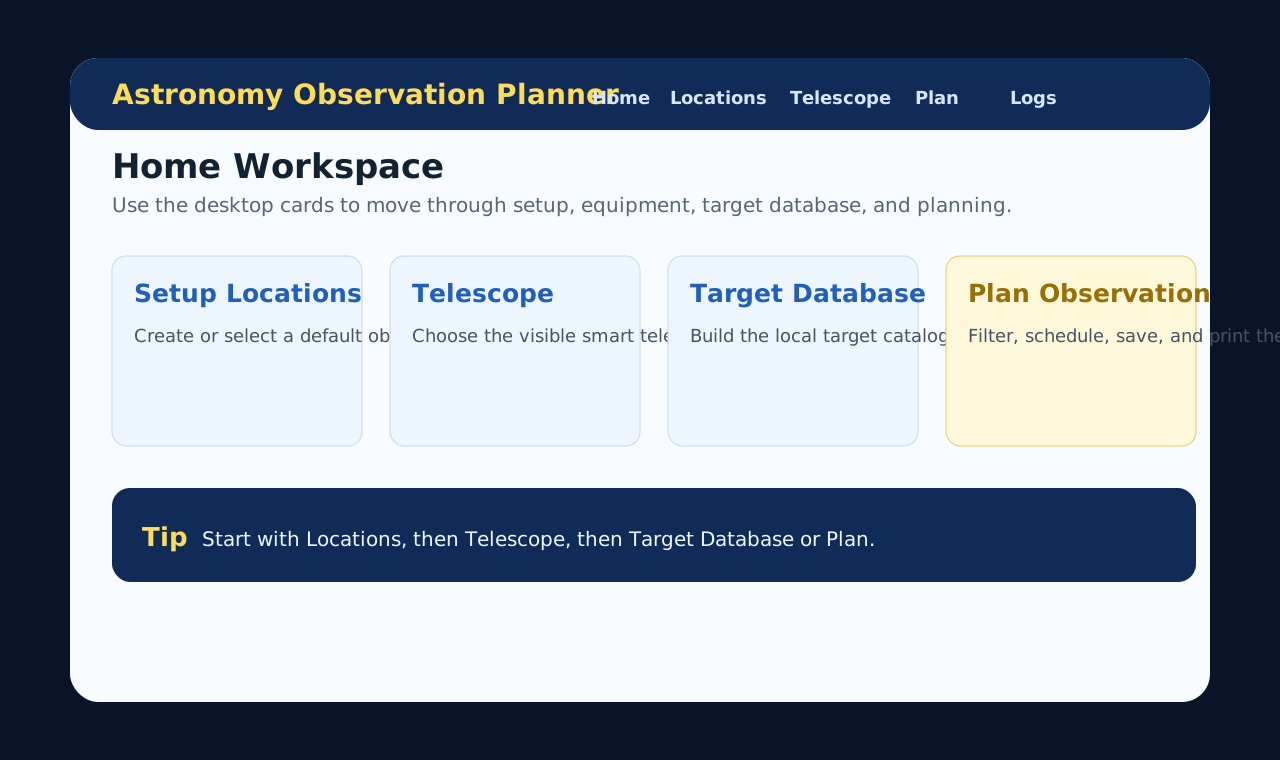
The Home workspace shows the current moon and viewing context, then offers the main setup cards. The Mac layout is intentionally larger and more desktop-oriented than the iOS layout.
- Setup Locations: create and save observing sites before planning.
- Observation Equipment Used: select telescope and accessory combinations.
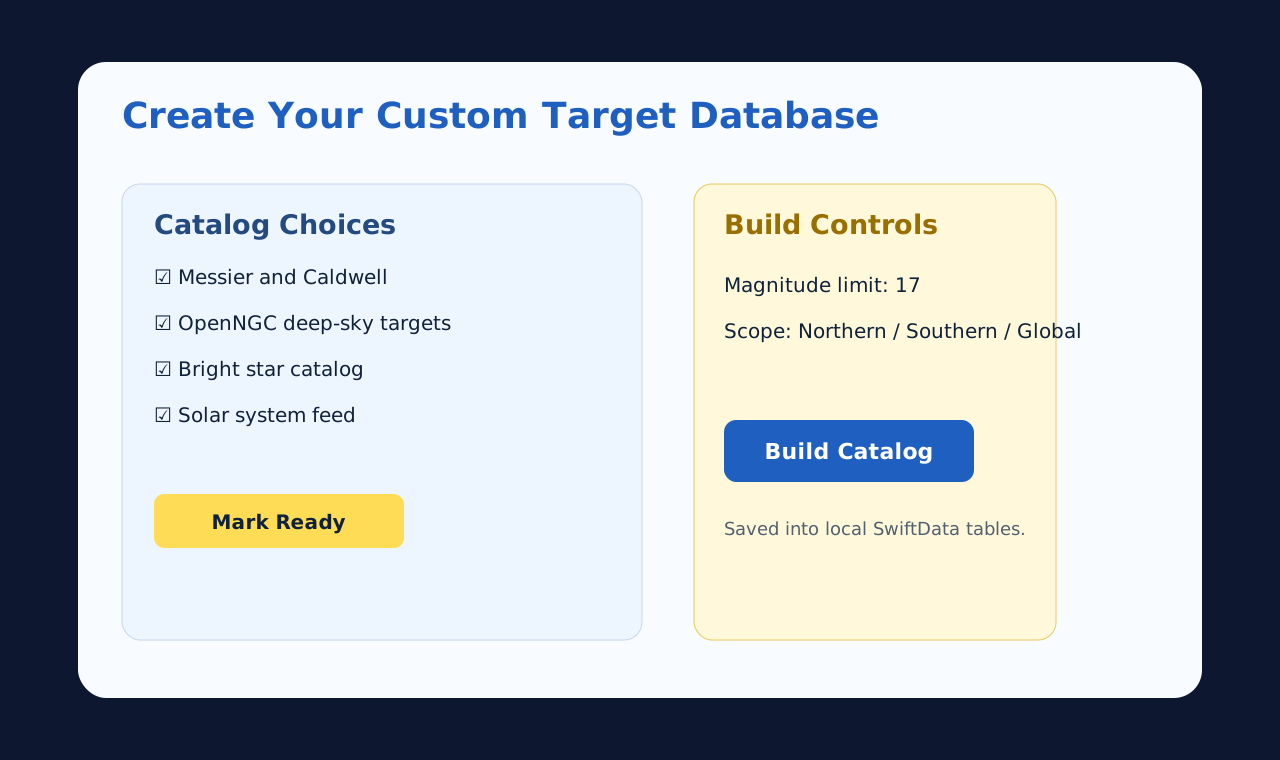
- Create Your Custom Target Database: choose catalog and filter limits for local targets.
- Plan an Observation: open the observing plan workspace for the selected night and location.
Setup Locations
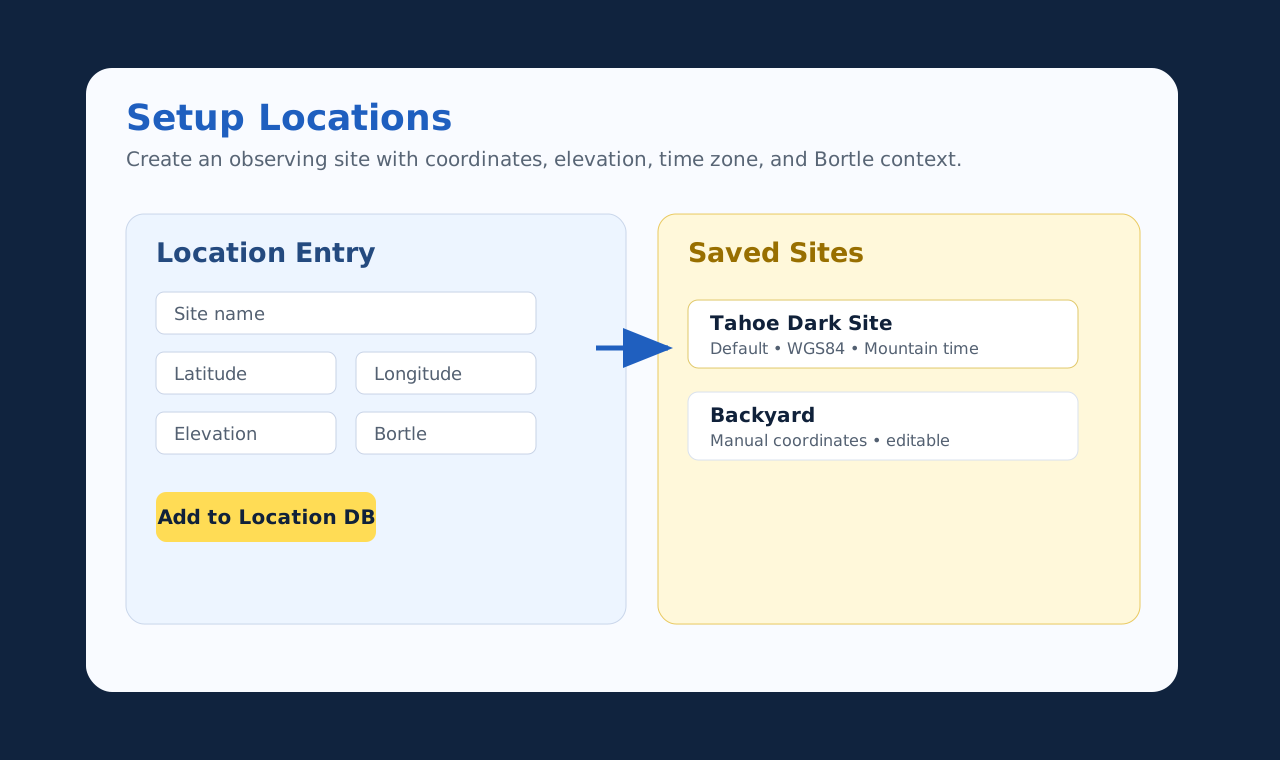
Use Setup Locations to create, save, and select observing sites. A saved location gives the planner a latitude, longitude, elevation, time zone, and Bortle context for target visibility and sky timing.
Location Entry Methods
- Use current location if macOS Location Services and network/location lookup are available.
- Enter WGS 84 latitude and longitude manually.
- Use country-aware address fields when address lookup is available.
- Save the location and set the primary site as default before building a plan.
Validation
Check that latitude, longitude, elevation, country, and time zone are filled before continuing. If a location already exists, select it instead of creating duplicate site records.
Telescope And Accessories
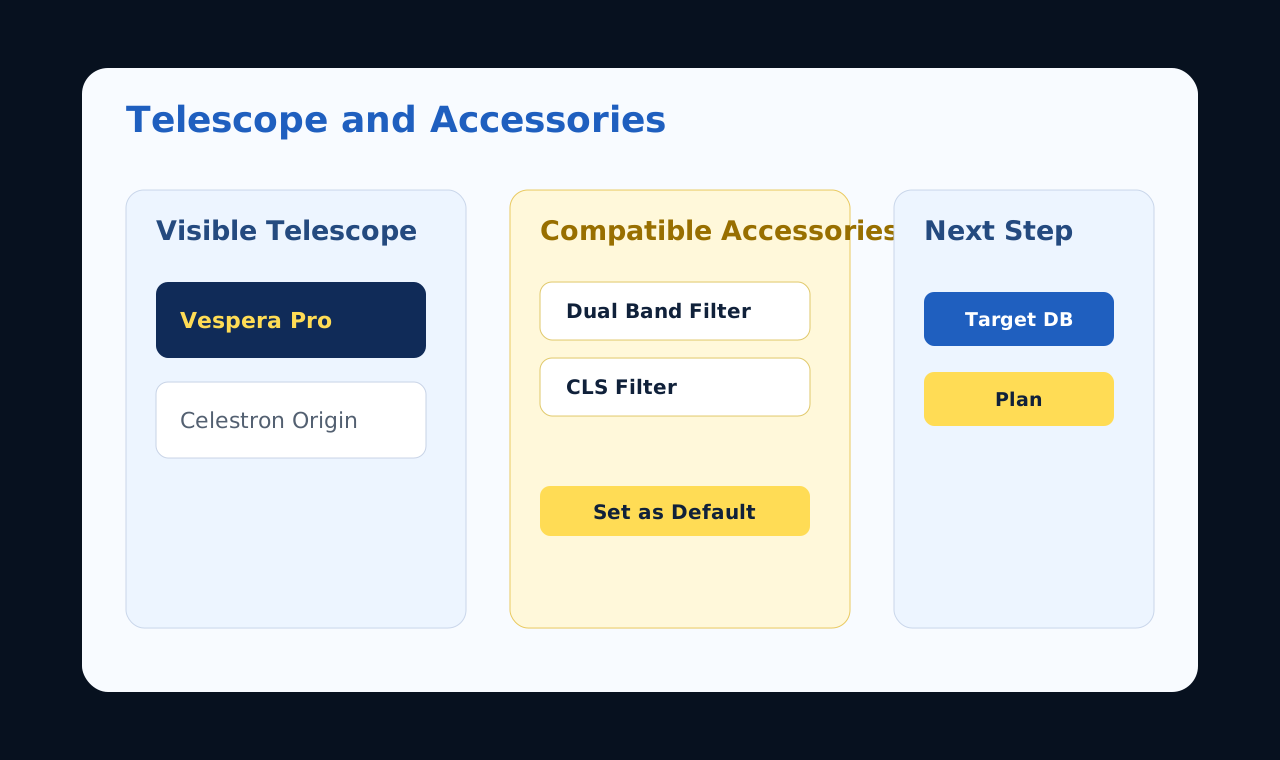
The Telescope page lists available telescopes and the accessories that work with each telescope. The macOS app supports selecting more than one compatible accessory and adding user telescopes or accessories from the Telescope page.
- Choose the telescope visible for the observing session.
- Use Add Telescope when the visible scope is not already listed.
- Use the accessory drop-down to choose accessories that match the selected telescope.
- Use Add Accessory or Add Compatible Accessory when a filter, adapter, or add-on is missing.
- Add more than one accessory when the observing setup uses multiple compatible items.
- Use Set as Default after choosing the telescope and accessories if this setup should be reused.
- Use Add Another to create or attach an additional telescope setup.
- Use Next Step to continue to Target Database Filter.
- Use Plan an Observation to move directly into the planning workspace.
Smart telescope users can choose the smart telescope directly. User-added telescope and accessory profiles are saved locally and can be selected again in later planning sessions.
Target Database Filter
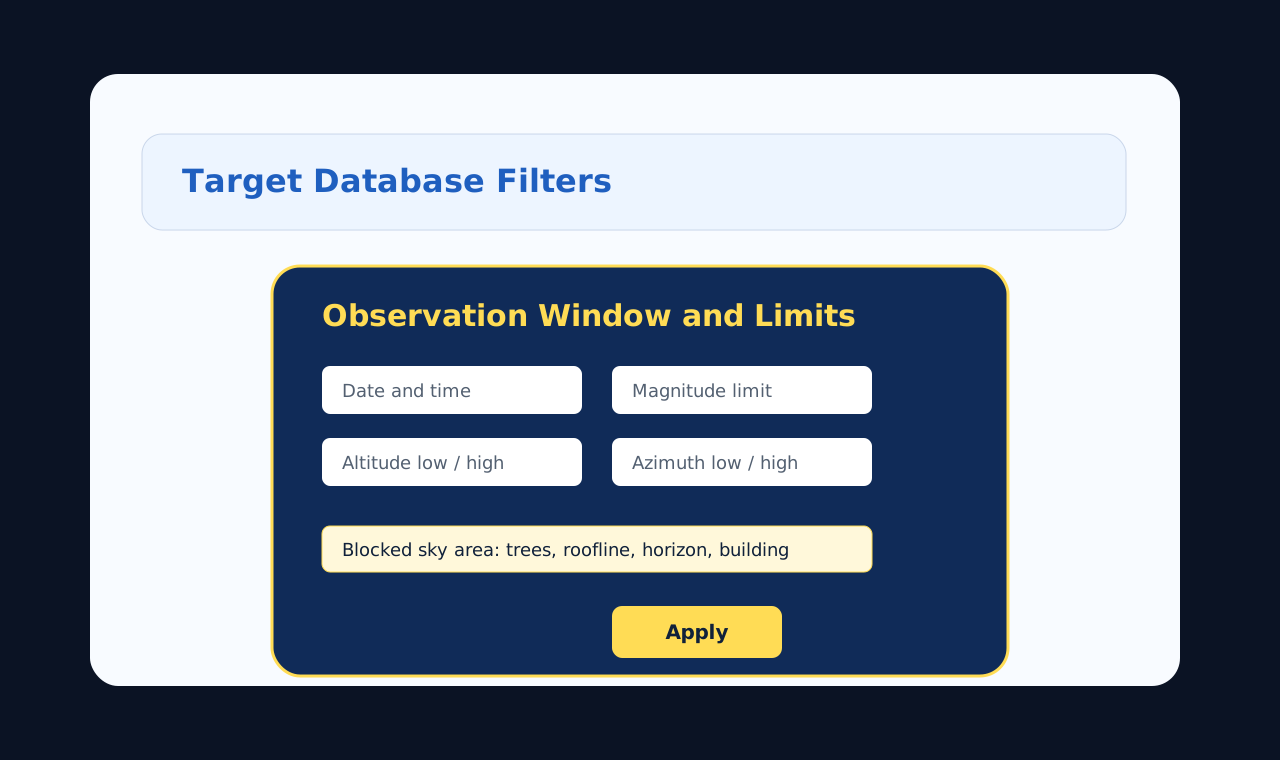
The Target Database Filter controls the visible target list for the plan. The filter label opens the observation windows and limits as a pop-up instead of taking over the full card.
Observation Windows And Limits Pop-Up
- Open the filter link to edit limits in a focused pop-up.
- Use the close control to return to the planning card without losing existing behavior.
- Set magnitude, object type, altitude, azimuth, and visibility limits as needed.
- Apply keeps the current filter behavior and collapses the card after activation.
Blocked Sky Areas
After Apply, the app can ask whether another object area should be blocked out. Add blocked regions with azimuth from/to and altitude from/to values, or cancel to keep only the current filter. Added blocked areas appear under the first entry so the user can see each excluded sky region.
The Planning Catalog card also reminds the user to double-click a target below to see an example.
Plan An Observation
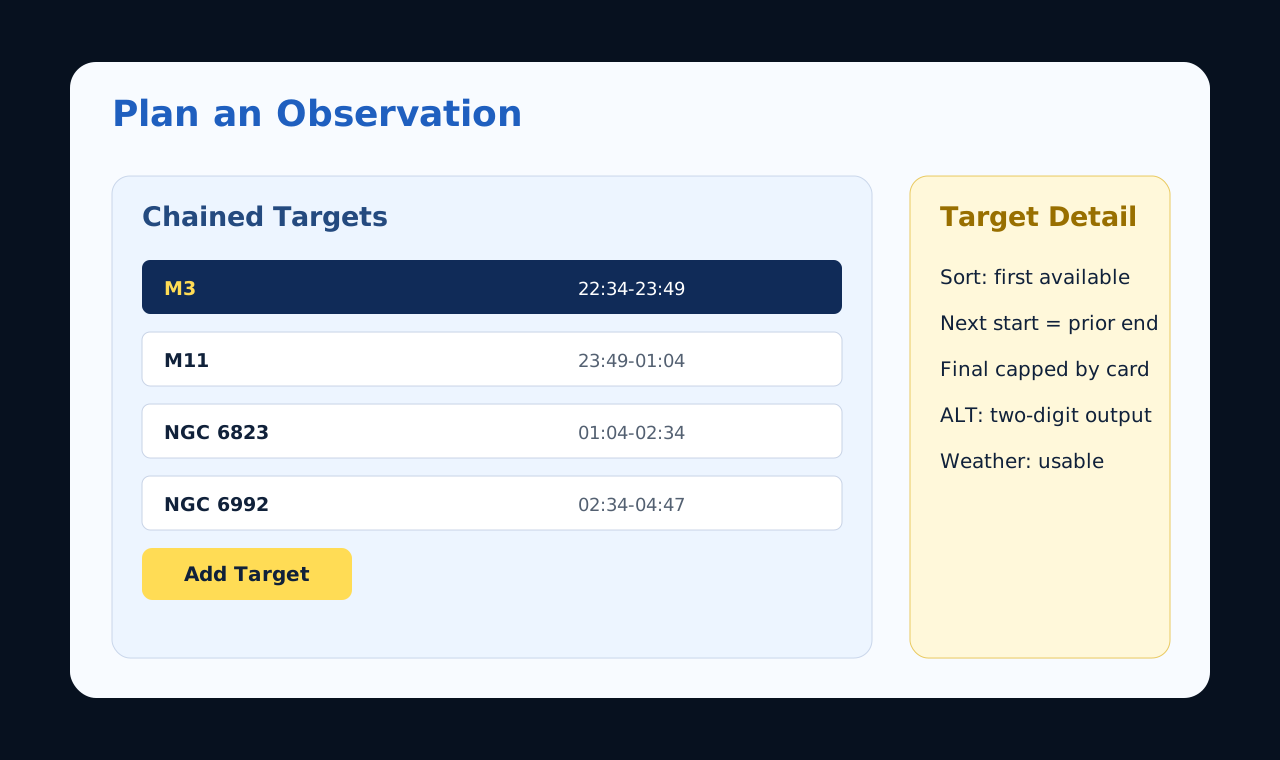
The planning page uses the selected location, equipment, accessories, target filters, and blocked sky areas to help build an observing list for the night.
- Review target rows and visibility values before adding targets to the plan.
- The Current List starts clean on launch unless a saved plan is opened.
- Changing the observation date from an active plan shows one save/clear/cancel gate before the plan is cleared.
- Inserted targets are sorted into the correct first-visible position and the remaining plan times recascade.
- Double-click a target to inspect example or detail information.
- Use 12-hour or 24-hour time entry carefully; verify saved times before exporting.
- Use planned observation windows to avoid low-altitude or blocked regions.
- Review the final plan before saving or exporting.
Review, Export, And Logs
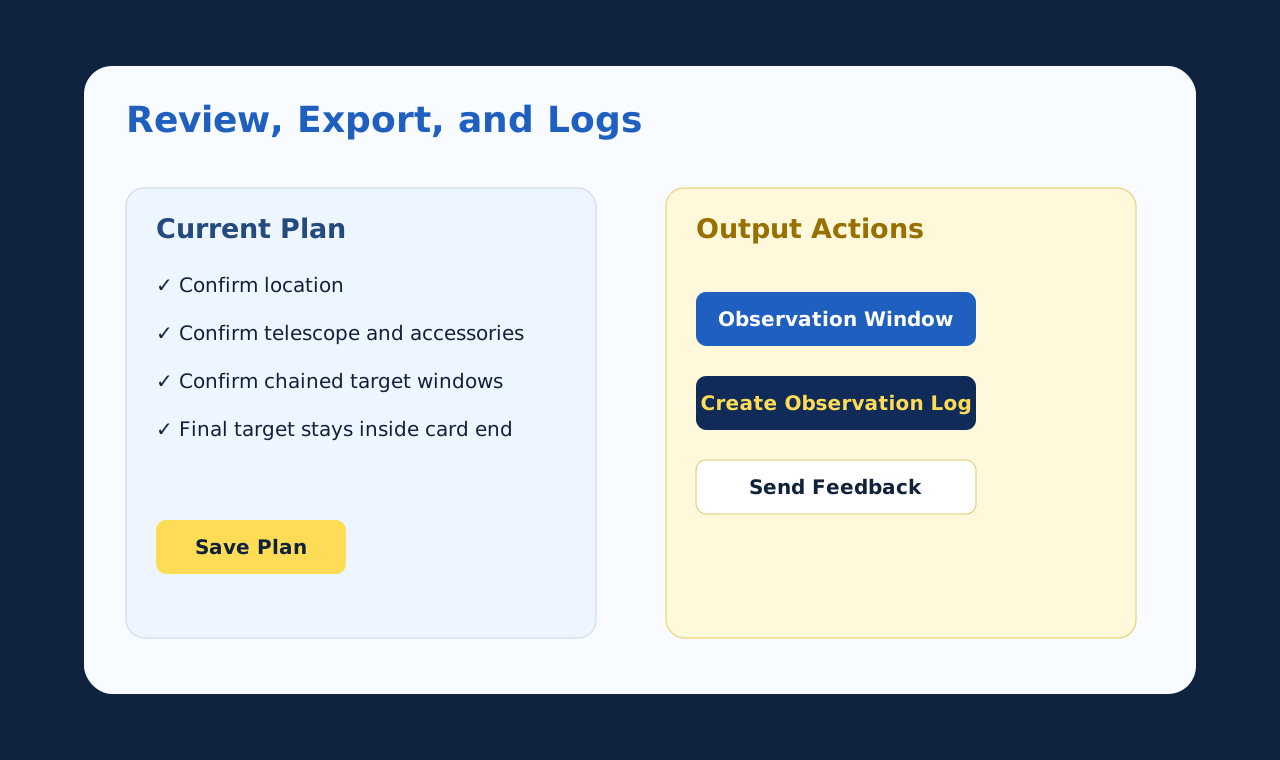
The macOS app is intended to keep planning and observing logs in one desktop workspace. Available actions can include saving the current plan, printing, creating a PDF, reviewing target details, and recording session notes depending on the release build.
- Confirm the default location and equipment before saving a plan.
- Confirm target order and observation times before export.
- Use exported PDFs or printed plans for field use.
- Keep feedback focused on repeatable steps, visible result, and expected result.
Support Notes
When reporting feedback, include the macOS version, app version/build, whether the setup-complete privacy page was already accepted, the selected location, selected telescope/accessories, and the page where the issue occurred.
Use the website feedback form and choose Astronomy Observation Planner macOS (Build 6) so the report is routed as Mac release feedback.
This manual is intentionally separate from the iOS manual. iPhone and iPad users should use the BigSky Planner iOS Manual or open Smart Telescope Planner on the App Store.